
 Polski
  Deutsch
  Español
  Français
  Italiano
  Português
  Nederlands
  Svenska
  Українська
  Русский
 Switching Recipe Apps: 9 Things to Check Before You Move
Switching recipe apps? Use this practical checklist to protect your recipes, photos, notes, source links, categories, meal plans, and grocery data.
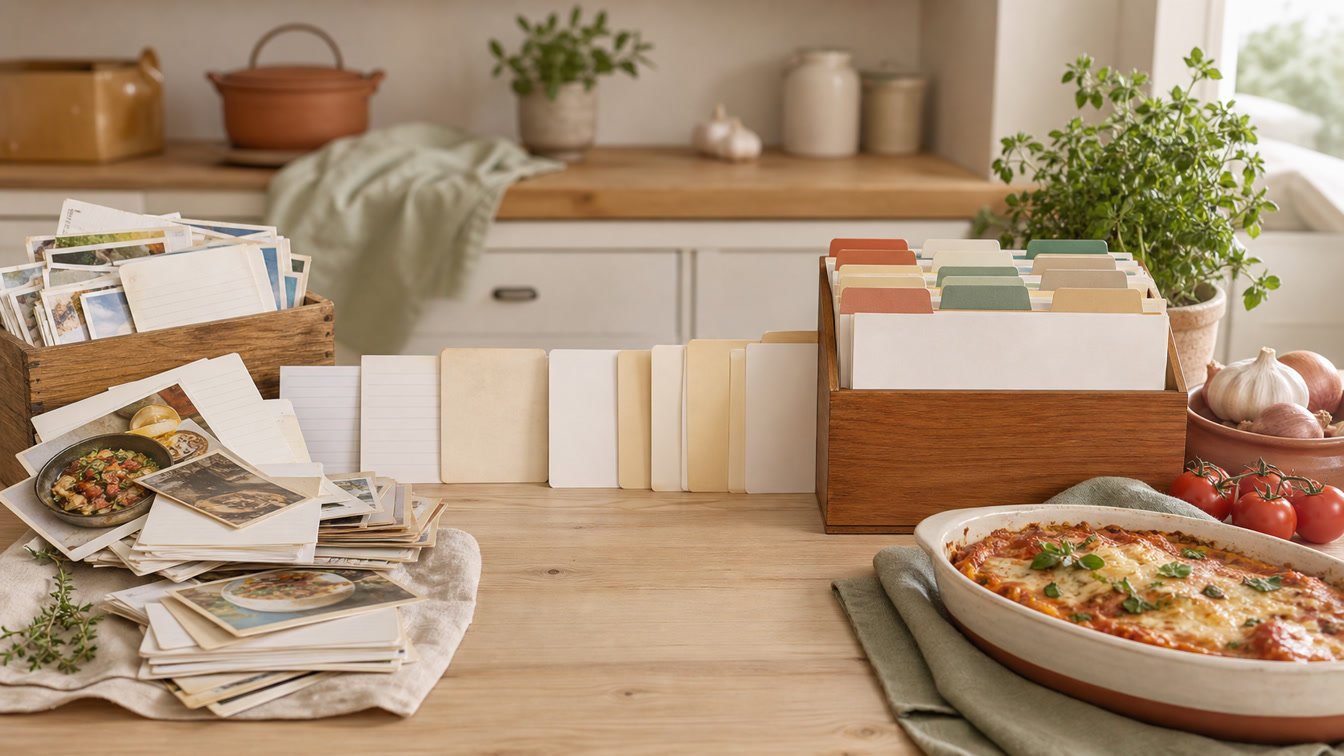
Your recipe app looked perfect when you had twelve recipes. Now it holds five years of dinners, handwritten family notes, favorite photos, carefully named collections, and the one soup you always make when someone is sick. Moving is no longer a simple download. It is a small data migration with real memories attached.
That is why switching recipe apps should begin with questions, not an uninstall button. The new app may look calmer or offer better imports, meal planning, and grocery lists—but none of that helps if your old recipe photos disappear or two hundred recipes arrive without categories.
This nine-point checklist shows you what to verify before you move, how to test a destination app without risking your collection, and which data is most likely to need manual repair.
Disclosure: YumiShare publishes this guide. We naturally want people to consider YumiShare, but the checklist is designed to evaluate any recipe app—including ours. A responsible migration starts with an honest inventory of what your current and destination apps can actually transfer.
Key Takeaways
- Do not delete your old app or account until you have a separate backup and have inspected the new library.
- “Export” can mean a reusable database file, a folder of HTML pages, a PDF, a share link, or one recipe at a time. Those are not equivalent.
- Test five deliberately different recipes before moving the full collection: a web import, a manual recipe, a recipe with several photos, one with notes, and one with ingredient sections.
- Compare recipe counts, then inspect important fields—not just titles.
- Photos, source URLs, categories, ratings, notes, meal plans, grocery lists, and pantry data may travel differently from ingredients and instructions.
- Treat the old app as read-only for a short overlap period so edits do not split across two libraries.
- Before choosing the next app, check how you would leave it. Portability is a feature you need before you need it.
Table of Contents
- Why Recipe App Migrations Go Wrong
- Quick Migration Risk Map
- The 9 Things to Check Before Switching Recipe Apps
- A Safe Recipe App Migration Plan
- Where YumiShare Fits
- Your Final Verification Checklist
- Frequently Asked Questions
Why Recipe App Migrations Go Wrong
Recipe apps rarely store information in exactly the same way. One app may treat “Sauce” as an ingredient heading; another may flatten every ingredient into one list. One may support several photos, while another has a single cover image. Categories, tags, favorites, ratings, difficulty, nutrition, and personal notes may each live in different fields.
That mismatch explains why a successful download is not the same as a successful migration. The file can exist and still be unsuitable for the destination app. A beautiful PDF is useful for reading and printing, but it may not preserve machine-readable ingredient fields. A proprietary archive may preserve every detail but open only in the same product family.
Official documentation illustrates the difference. Paprika’s current Windows guide describes two bulk export choices: portable HTML and its own .paprikarecipes format. The Paprika export guide says its HTML export creates an index and one HTML file per recipe, while its proprietary format is designed for Paprika imports. ReciMe’s current export help describes sharing a recipe by URL or exporting it as a PDF on iOS. Both products can truthfully say “export,” but those workflows solve different problems.
The lesson is simple: before switching recipe apps, ask what the exported object contains, whether the destination can import it, and which information survives the conversion.
If your current problem is general clutter rather than migration, first read our guide to building a personal digital recipe box. A clean inventory makes every later decision easier.
Quick Migration Risk Map
- Recipe title — low risk: Check for truncation, duplicates, and character-encoding problems.
- Ingredients and steps — medium risk: Check sections, order, line breaks, fractions, and units.
- Servings and times — medium risk: Check separate prep, cook, and total fields, plus text-versus-number formatting.
- Notes and ratings — medium to high risk: Confirm the destination has matching fields.
- Source URL and author — medium risk: Verify attribution and link preservation.
- Photos and attachments — high risk: Check cover images versus galleries, resolution, and captions.
- Categories, tags, and favorites — high risk: Check hierarchy, multiple categories, and naming rules.
- Meal plans and grocery lists — high risk: These are often stored separately from recipe exports.
- Pantry, expenses, and history — very high risk: These are frequently product-specific operational data.
This risk map is a starting point, not a guarantee. Your risk depends on the exact versions, platforms, subscription tier, and export format involved. Test with your own data before committing.
The 9 Things to Check Before Switching Recipe Apps
1. Can you export the whole library—or only one recipe at a time?
Start in your current app, not the new one. Look for export, backup, print, share, or data-download controls. Then determine their scope.
Ask:
- Can you select all recipes?
- Can you export a collection or category?
- Is the result one file, a folder, or many files?
- Does export require a desktop version or paid plan?
- Are photos included or downloaded separately?
- Is the export a true backup that can be restored?
Do not assume a PDF is a bulk migration format. A PDF protects readable content, which is valuable, but the next app may see it as a document or image rather than ingredients and instructions.
If no bulk export exists, estimate the manual workload before paying for a destination app. Migrating fifty treasured recipes carefully may be sensible. Re-entering two thousand without a supported workflow probably is not.
2. Does the destination understand the export format?
A file extension is a contract. The destination must explicitly support it or provide a documented conversion path.
Paprika’s proprietary archive is a useful example. AnyList publishes official instructions for importing recipes from Paprika using a .paprikarecipes file. That is a direct, documented path. A different app may accept URLs and photos but not that archive. Neither approach is inherently wrong; they serve different migration scenarios.
Before moving everything:
- Export a small category.
- Import it into a test account or empty collection.
- Open every sample recipe.
- Confirm the destination did not silently skip unsupported records.
- Keep the original test file unchanged for comparison.
If conversion software is required, retain both the original export and converted result. Never make the converted copy your only backup.
3. Which recipe fields survive?
Ingredients and directions are the obvious fields, but a useful recipe contains much more. Build a field inventory from several complicated recipes.
Check:
- title and description;
- servings or yield;
- preparation, cooking, and total time;
- ingredient headings and groups;
- instruction sections and numbering;
- personal notes and substitutions;
- rating, favorite status, and last-cooked notes;
- nutrition, difficulty, and cuisine;
- source name, creator, and original URL.
Choose samples that expose weak points. A basic three-ingredient smoothie proves very little. A layer cake with separate sponge, filling, and frosting sections will tell you whether the migration respects structure.
Fractions deserve special attention. Make sure ½, 1/2, and 1 1/2 remain distinct. Confirm that tablespoons and teaspoons do not collapse into an ambiguous abbreviation.
4. What happens to photos, videos, and source links?
Recipe images are often the first thing users notice after a move—and one of the easiest things to lose.
Determine whether the export contains:
- the original-resolution cover;
- only a thumbnail;
- several gallery photos;
- image captions or names;
- remote image links that could expire;
- the original recipe URL;
- a social-video link or embedded clip.
Open the migrated library offline or after signing out of the old app when practical. If an image appears only because the old service is still serving its URL, you may not have a durable copy.
Attribution matters too. Preserving a source URL lets you credit the creator, review technique, and resolve ambiguity later. A migration that keeps the recipe text but drops the source may make the collection less trustworthy.
For recipes that exist only as images, see our guide on how to stop relying on recipe screenshots while still preserving the information they contain.
5. Will categories, tags, favorites, and duplicates stay useful?
Organization systems rarely map perfectly. One app may use nested categories; another may allow flat tags. A recipe that belonged to “Dinner,” “Under 30 Minutes,” and “Kids” might arrive in only one collection—or none.
Before switching recipe apps, write down your current organization model:
- number of collections or cookbooks;
- whether collections can be nested;
- whether one recipe can belong to several collections;
- favorite, rating, or “to try” markers;
- custom tags you use for allergies, equipment, or seasons.
Then test duplicate handling. Import the same recipe twice on purpose. Does the new app warn you, merge it, or create two copies? Duplicate detection is especially important when part of your library is migrated from files and part is re-imported from original links.
Do not spend hours rebuilding every old category automatically. Migration is a good time to remove abandoned labels and keep the few that actually help you decide what to cook.
6. Are meal plans, grocery lists, pantry items, and history included?
Your recipe library and your kitchen workflow may be separate databases even when they appear in one app. Recipe export can omit:
- future meal plans;
- recurring meals;
- grocery lists and checked items;
- custom store aisles;
- pantry stock and “running low” status;
- cooking history;
- receipt or expense records;
- reminders and notifications.
Assume operational data will need separate handling until the documentation proves otherwise. Screenshot the next two weeks of meal plans, finish or archive active grocery lists, and export financial or receipt data separately if the app provides that option.
This is also the moment to decide what deserves migration. Old checked grocery items usually do not. Family pantry notes, planned holiday meals, and a carefully organized freezer inventory might.
If connected planning is your priority, compare the destination against our guide to a meal planner with grocery list.
7. Do the counts and sample recipes match?
After import, count first and browse second. Record the number of recipes in the source before exporting. Compare it with:
- records included in the export;
- records reported as imported;
- recipes visible in the destination;
- duplicates or failed items listed by the importer.
Counts can match while fields are wrong, so inspect a purposeful sample:
- Your oldest manual recipe.
- Your newest web import.
- A recipe with several photos.
- A recipe with ingredient sections.
- A favorite with notes and rating.
- A social-video recipe with an original source link.
- A recipe containing accented characters and fractions.
Open each source and destination record side by side. Check the field inventory from step three. If two of seven samples have missing information, stop and investigate before moving the rest.
8. Will the new app work on the devices and accounts you actually use?
Migration is not only about data. It is also about access.
Confirm:
- supported phones, tablets, and computers;
- whether the same library syncs across them;
- which features require a subscription;
- whether family members use one account or separate accounts;
- how shared lists and cookbooks behave;
- whether offline access matters in your kitchen;
- what happens if you sign in with Apple, Google, email, or another identity.
Use the official product page and current store listing, not an old review. Platform support and pricing can change. Also make sure you know which login method created the account. A surprising number of “lost library” problems are simply a user signing into a different account.
Our guide to a recipe app that syncs across devices explains the practical questions behind cross-device access.
9. How would you leave the new app later?
This final question is easy to ignore because you have not moved in yet. Ask it anyway.
Before building a new library, check whether the destination offers:
- bulk export;
- a documented, restorable backup;
- open or widely supported formats;
- readable copies such as HTML or PDF;
- source URLs and image files;
- account-data deletion controls;
- support contacts for migration questions.
Run an exit test with the same five recipes you imported. Export them from the destination and inspect the result. If you cannot recover a readable copy, decide whether the app’s convenience is worth that lock-in.
Data portability is not glamorous, but it protects the work you will do next year. Choose an app that treats your cookbook like your collection—not a hostage.
A Safe Recipe App Migration Plan
Once the nine checks look acceptable, use a staged move rather than a weekend-long leap.
Phase 1: Freeze and back up
Create the best available export from the old app. Store two copies in different locations. Record the recipe count and date. Do not delete anything.
Phase 2: Run a five-recipe pilot
Choose deliberately difficult recipes, import them, and evaluate every field. Add one migrated recipe to a meal plan and grocery list so you test the downstream workflow, not only the recipe screen.
Phase 3: Move one category
Transfer a useful but manageable group such as “Weeknight Dinners.” Cook from it for several days. This exposes problems with search, scaling, cook mode, and grocery lists before the full collection arrives.
Phase 4: Transfer the library
Use the documented bulk method when available. Save any error report. Avoid editing the old and new copies simultaneously; otherwise you will create two versions of the truth.
Phase 5: Verify and overlap
Compare counts and samples. Keep the old app installed and read-only for at least a short overlap period. Only consider closing the old account after you can find, open, and cook your important recipes in the destination—and after you still have an independent backup.
Where YumiShare Fits
The current YumiShare website and App Store listing describe importing recipes from links, social videos, photos, screenshots, and manual entry. They also describe cookbooks, favorites, meal planning, grocery lists, pantry tracking, serving scaling, nutrition, and step-by-step cook mode.
Those import routes are useful when your old collection is mainly original web links, social saves, screenshots, cookbook photos, or a smaller set of priority recipes. YumiShare lets you preview and edit imported information before saving, which is exactly what a careful migration needs.
The public product pages do not currently promise a universal one-click bulk importer for every proprietary recipe archive. If you have hundreds of records in a specialized file format, confirm compatibility before committing. You may decide to keep a readable archive of the old library, then move the recipes you actually cook first.
If that workflow suits your collection, download YumiShare from the App Store and run the five-recipe pilot before building the rest of your cookbook.
For a current evaluation of source types, use our recipe import test to choose between a link, social post, website, or screenshot.
Your Final Verification Checklist
Before you call the move complete, confirm:
- The old library is backed up independently.
- The destination supports the source format or documented migration route.
- Recipe counts reconcile with any skipped or duplicate records.
- Ingredients, instructions, servings, times, and notes survived.
- Photos and source URLs open correctly.
- Categories, favorites, and tags are usable.
- Important meal plans, lists, pantry data, and reminders were handled separately.
- Your phone, tablet, computer, and family access work as expected.
- You tested an export or exit path from the destination.
- The old account remains available during the verification window.
Switching recipe apps is successful when you can find and cook the recipes that matter—not merely when a progress bar reaches 100%.
Conclusion: Move the Cookbook, Not Just the Titles
The safest way to approach switching recipe apps is to treat the collection like meaningful data. Start with the exit options in your current app. Test the actual format. Inspect fields, photos, organization, and operational kitchen data. Then move in stages and keep the original backup.
Nine careful checks can prevent months of frustration. More importantly, they help you choose a destination based on real daily cooking: finding a trusted recipe, planning it, buying the right ingredients, and following the method without discovering a missing detail at the stove.
Frequently Asked Questions
What is the first step when switching recipe apps?
Create the best available backup or export from your current app, record the recipe count, and keep the old account intact. Do this before importing anything into the destination.
Can I move recipes if my current app only exports PDF files?
You can preserve and read the recipes, but a destination app may not treat a PDF as a structured bulk archive. Test one PDF first. You may need photo or document scanning, manual review, or another documented conversion route.
What is the difference between backup and export?
A backup is usually designed to restore data to the same product. An export is intended to create a copy outside the app, but it may be proprietary or readable only. Check whether the file can be restored, opened independently, or imported elsewhere.
How many recipes should I test before a full migration?
Five to seven varied recipes are a good pilot. Include manual and web recipes, multiple photos, ingredient sections, notes, source links, fractions, and accented characters. The goal is to expose structural problems early.
Will meal plans and grocery lists move with my recipes?
Do not assume they will. These features may use separate data that recipe export omits. Check official documentation and handle upcoming plans, active lists, pantry items, and history separately.
Should I clean duplicates before or after switching?
Back up first. Then test how the destination detects duplicates. It is often safer to migrate a known collection and clean it in the new system, but the correct choice depends on whether the importer merges, skips, or duplicates matching recipes.
When can I delete the old recipe app?
Only after you have verified counts and fields, cooked from the new library, confirmed photos and sources, and retained an independent backup. Keep a short read-only overlap period whenever possible.
Can YumiShare bulk-import every recipe app archive?
YumiShare’s public pages currently describe imports from links, social videos, photos, screenshots, and manual entry. They do not promise support for every proprietary bulk archive. Test your specific source and confirm large migrations before relying on a one-step transfer.